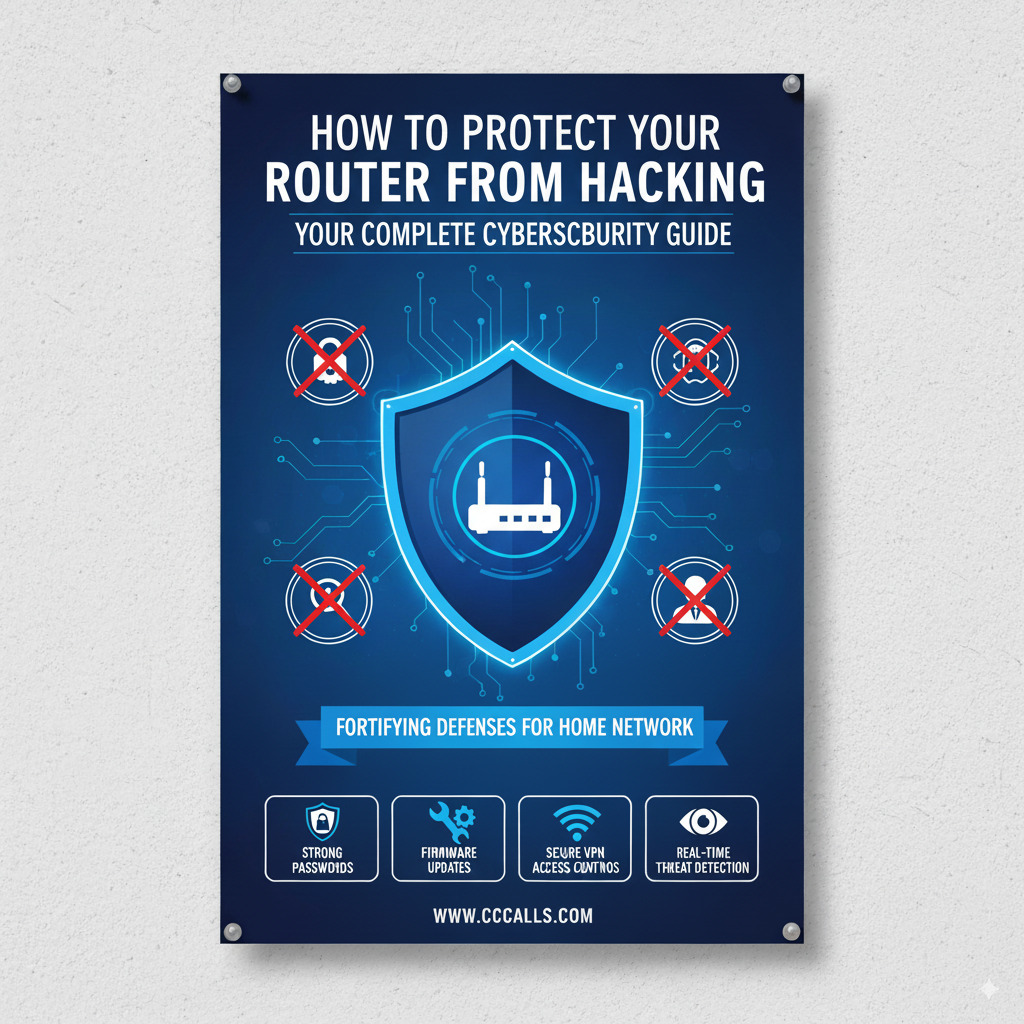
Your router is the gateway to all internet-connected devices in your home or office. If it’s compromised, hackers can intercept personal data, install malware, or take full control of your network. Fortunately, protecting your router from hacking is straightforward—if you follow the right steps.
This guide will walk you through how to secure your router, no matter the model (Netgear, TP-Link, ASUS, Linksys, Google Nest, etc.), and includes best practices, configuration tips, and model-specific notes.
✅ Why Router Security Matters
- Data Theft: Hackers can monitor or steal data passing through an unsecured router.
- Device Takeover: They may access smart devices (cameras, TVs, thermostats).
- Botnet Recruitment: Your router could become part of a botnet for DDoS attacks.
- Wi-Fi Hijacking: Neighbors or strangers could use your connection without permission.
🔧 1. Change the Default Router Login Credentials
Default usernames/passwords are widely known and searchable online.
How to Do It:
- Go to your router’s admin page (usually
192.168.1.1or192.168.0.1) - Log in using the default credentials
- Go to the “Administration” or “System” section
- Change both username and password to strong, unique ones
Popular Model Examples:
| Brand | Admin Access Address | Default Login |
|---|---|---|
| Netgear | 192.168.1.1 or routerlogin.net | admin / password |
| TP-Link | 192.168.0.1 or tplinkwifi.net | admin / admin |
| ASUS | 192.168.1.1 or router.asus.com | admin / admin |
| Linksys | 192.168.1.1 | admin / admin |
| Google Nest | Google Home app | Uses Google credentials |
| D-Link | 192.168.0.1 | admin / (blank) |
🔄 2. Update Router Firmware Regularly
Firmware updates fix security vulnerabilities.
Steps:
- Log in to your router’s admin interface
- Look for “Firmware Update” or “System”
- Enable auto-update (if supported)
- If manual, check manufacturer’s website and upload new firmware
Tip: Use mobile apps like TP-Link Tether, Netgear Nighthawk, or Google Home to receive update notifications.
🧱 3. Enable WPA3 (or WPA2) Encryption for Wi-Fi
Never use open Wi-Fi or outdated WEP security.
- Go to Wireless Settings or Wi-Fi Settings
- Set:
- WPA3-Personal (recommended)
- Or WPA2-AES if WPA3 isn’t available
- Set a strong Wi-Fi password (at least 12 characters, random)
🚫 4. Disable Remote Management (unless required)
Remote administration allows access from outside your network—high risk!
- In your router settings, look for:
- Remote Management
- Remote Access
- Web Access from WAN
- Turn it OFF unless you use a secure VPN or advanced firewall
🔒 5. Use a Guest Network for Visitors & IoT Devices
Keep your main network private.
- Set up a Guest Wi-Fi in the admin panel
- Disable “Access to Local Network” for guests
- Use this for smart TVs, Alexa, cameras, etc.
📡 6. Turn Off WPS (Wi-Fi Protected Setup)
WPS is vulnerable to brute-force attacks.
- Disable WPS in your router settings (often under Wireless or Security)
- Connect devices using the network name and password instead
🌐 7. Change Your Router’s Default IP Address
- Instead of using
192.168.0.1or192.168.1.1, change to a custom local IP like192.168.77.1 - Reduces the chances of automated login attacks
🔍 8. Monitor Connected Devices
- Regularly check the “Device List” in your router
- Flag and remove any suspicious devices
- Some routers support notifications for new devices joining
🔐 9. Use DNS Filtering
Use secure DNS servers to block malicious sites:
- Cloudflare DNS:
1.1.1.1 - Google DNS:
8.8.8.8 - OpenDNS:
208.67.222.222
Change this in the Internet > DNS Settings section of your router.
🧠 10. Advanced Tips for Tech-Savvy Users
- Enable Firewall/NAT filtering – typically ON by default, but double-check
- Use a VPN router – encrypts all outgoing traffic
- Install custom firmware (for advanced users):
- DD-WRT, OpenWRT, or Tomato offer better controls and frequent updates
- Set up MAC address filtering – allows only approved devices
🔍 Model-Specific Notes
| Model/Brand | Extra Tips |
|---|---|
| Netgear Nighthawk | Use the Nighthawk app to set up guest networks and block devices remotely. |
| TP-Link Archer Series | Supports OneMesh and HomeCare (antivirus + parental controls). |
| ASUS RT-AX Series | Use AiProtection by Trend Micro, included in most models. |
| Linksys Velop / Smart Wi-Fi | Use Linksys app for remote control; turn off UPnP unless needed. |
| Google Nest Wi-Fi | Security managed through Google Home app; enable WPA3. |
| D-Link DIR Series | Regularly update via D-Link’s support portal; disable SharePort features if unused. |
✅ Quick Security Checklist
| Task | Status |
|---|---|
| Changed default admin password | ✔️ |
| Updated firmware | ✔️ |
| Enabled WPA3/WPA2 encryption | ✔️ |
| Disabled remote access | ✔️ |
| Created guest network | ✔️ |
| Disabled WPS | ✔️ |
| Monitored connected devices | ✔️ |
| Set secure DNS | ✔️ |
🚨 Warning Signs Your Router Might Be Hacked
- Slow internet with no clear cause
- Unknown devices connected
- Router settings changed without your input
- Frequent disconnections
- Redirects to strange websites
📦 Conclusion
Securing your router is one of the most important steps you can take to protect your home or office network. Whether you’re using a basic TP-Link model or a high-end Netgear Nighthawk, the principles are the same: change defaults, enable encryption, disable risky features, and stay updated.